

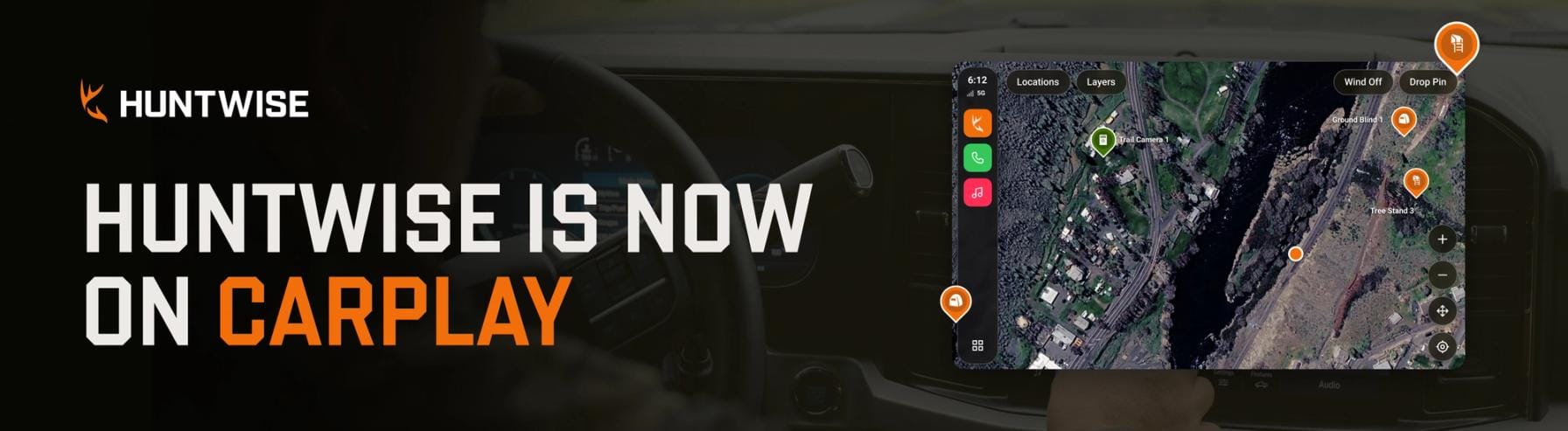
Connect your iPhone to a CarPlay-compatible vehicle, open HuntWise from the CarPlay screen, use your map, change base maps, and drop a pin from the dash. Plus, CarPlay is free for every HuntWise user, and paid plans add more.
Why? Because every hunt starts with a drive. You roll down a back road before sunrise, spot a field edge full of sign or a stretch of timber that looks right, and promise yourself you’ll remember it. By the time you park, the details have already blurred.
That’s the gap we built HuntWise on CarPlay to close. It’s designed for the miles between your truck and your stand. If you have an iPhone and a compatible vehicle, you can see your HuntWise map on your car display, navigate to a saved spot, and mark a new one without holding your phone.
Free users get basic maps, the public land layer, GPS, and turn-by-turn navigation. Paid members get Siri voice commands, private land, and property lines. Whether you’re learning unfamiliar ground or you’ve scouted the same county for 20 years, the drive is part of the hunt. Pair it with the habit of learning to e-scout before the season, and every mile starts working for you.
Here’s what you need to know about CarPlay and HuntWise to get it on your car’s dash for your next hunt!
What HuntWise on CarPlay Is and Who It’s For
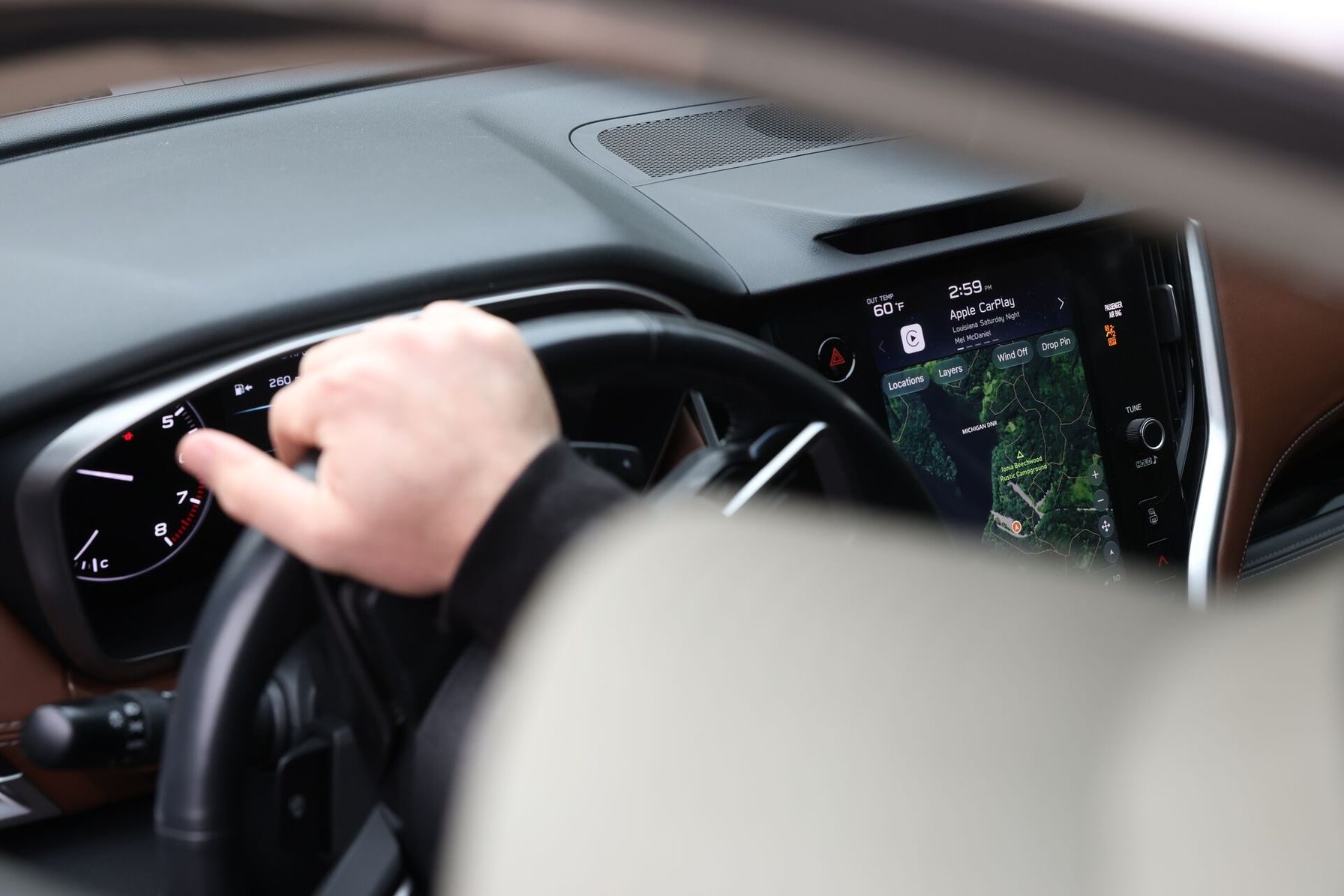
HuntWise on CarPlay puts a simplified version of your map on your vehicle’s display. We built it for driving (safely), so the toolset stays limited on purpose. You can see the map, navigate to pins, and mark a spot. Details such as landowner phone numbers stay on your iPhone, so you handle those once you’re parked.
It’s made for hunters who use an iPhone and drive a CarPlay-compatible vehicle, wired or wireless. Skill level doesn’t matter. Whether you hunt public land or ask permission on private ground, the dash gives you one more place to keep your plans organized.
Get a quick peek at what you get with CarPlay and HuntWise in the video below!

What’s Free and What Paid Plans Add
Free is a real offer here. Every HuntWise user gets maps, public land, and navigation on the dash. Then, paid plans build on that with more layers, private land, and voice control.
Here’s how the two options compare.
HuntWise on CarPlay: What's Free vs. Paid Enhancements | ||
|---|---|---|
| Feature | Free | Paid (includes Pro and Elite) |
| Basic Satellite and Topo base layers | ✓ | ✓ |
| Public land layer, all 50 states | ✓ | ✓ |
| GPS and turn-by-turn navigation | ✓ | ✓ |
| Mark a spot with a tap | ✓ | ✓ |
| Pro Satellite, added Topo, and Lidar layers | — | ✓ |
| Private land layer, all 50 states | — | ✓ |
| Property lines layer | — | ✓ |
| Path tracking | — | ✓ |
| 3D mapping | — | ✓ |
| Siri voice commands | — | ✓ |
| Good, fair, and poor ratings on blind and stand pins (list view) | — | ✓ |
The Paid column covers both Pro and Elite subscriptions, and it includes everything in the Free version of the HuntWise app.
If you mostly rely on public land hunting tips to plan your season, the free tools cover your drive. The private land and property lines layers help you see who owns the ground you’re passing, which matters when you’re deciding where to ask permission.

Siri Voice Commands Keep Your Hands on the Wheel
Paid members can talk to HuntWise through Siri while connected to CarPlay. The headline command is simple: “Hey Siri, mark this spot in HuntWise.” Siri saves the location, and your eyes stay on the road.
Say these phrases as written, and keep “in HuntWise” in each one so Siri knows which app you mean:
- Mark a spot: “Mark this spot in HuntWise,” “Save this spot in HuntWise,” or “HuntWise mark this spot”
- Add a note: Add “with a note” to any of those phrases
- Undo the last spot: “Remove that spot in HuntWise”
- Track your drive: “Start tracking in HuntWise” and “Stop tracking in HuntWise”
- Check your setups: “Check my blinds and stands in HuntWise”
- Control property lines: “Turn on property lines in HuntWise” or “Hide property lines in HuntWise”
When you ask Siri to check your blinds and stands, it reads back each one within 25 miles, nearest first, with a good, fair, or poor rating.
Remember: Voice commands work only on CarPlay, and they require a paid plan.
Why Drive Time Matters During Peak Season
Picture peak whitetail season. Your stand hasn’t produced in days, and another slow sit feels like wasted time. Instead of climbing back into the same tree, you take the truck out to find the next spot. Your backup plan starts in the truck.
Back roads reveal a lot. A buck crosses ahead of you at a field edge, or a stretch of timber looks right for the rut.
- Paid members can say the command and keep driving.
- Free users can tap to mark the spot once they’re safely parked.
Rut hunting rewards flexibility, and understanding the five rut phases helps you decide which roads and edges deserve a closer look.
Once you’re parked, check the pin on your iPhone map.
- On public land, review the rules and boundaries for that area.
- On private land, see who owns it and contact the landowner from your phone.
Learn how to ask for hunting permission from landowners, and hunt private property only after you get a yes. Always confirm access rules before you go.
Then hunt it on your next sit. Found it at last light. Hunt it at first.
How to Use the HuntWise Hunting App with CarPlay
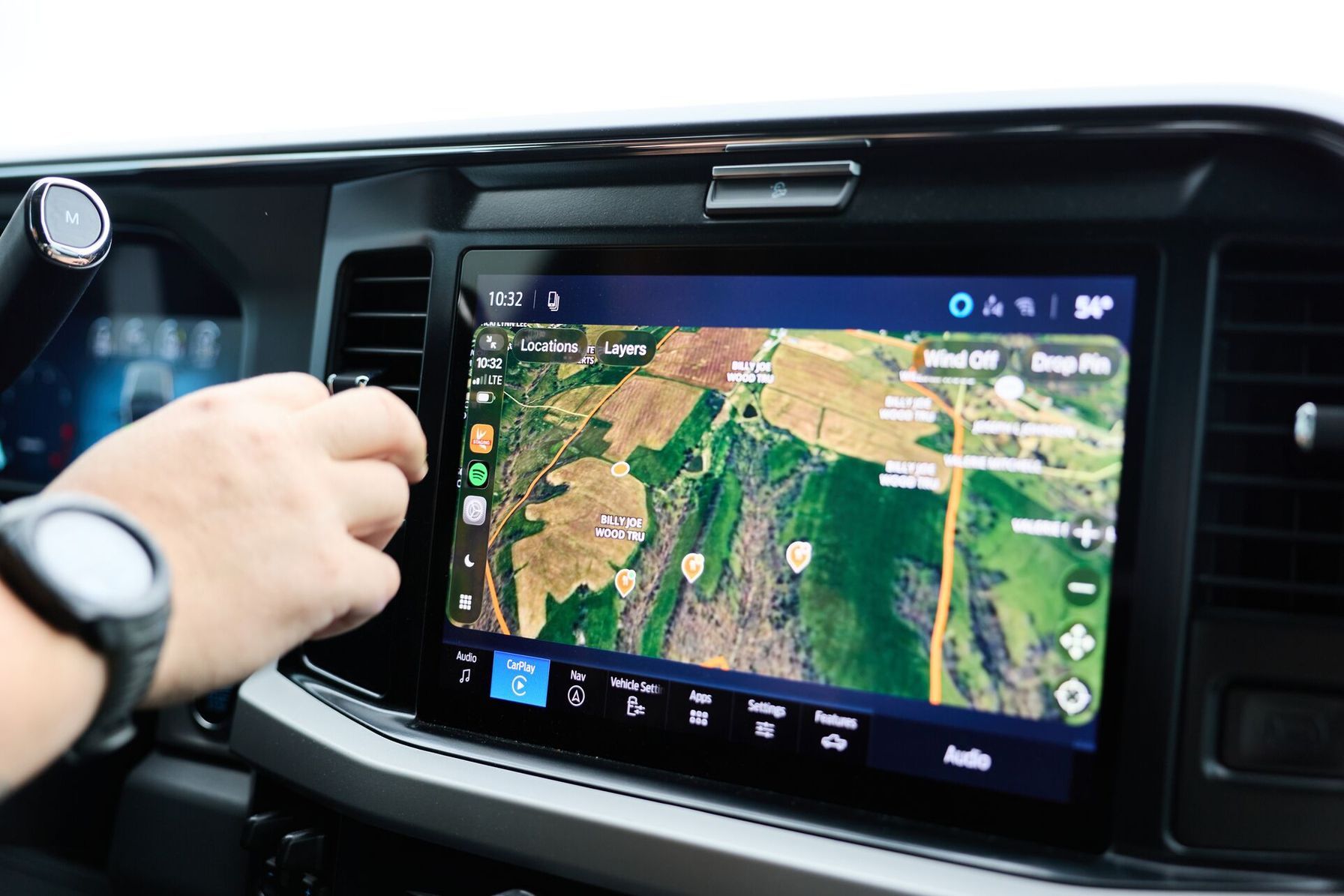
Getting HuntWise on your dash takes only a few minutes. Follow these steps at home or while parked so your map is ready when you pull out.
- Update HuntWise on your iPhone to the latest version.
- Connect your iPhone to your CarPlay-compatible vehicle with a cable or wirelessly.
- Find HuntWise on the CarPlay home screen. If it’s missing, open Settings on your iPhone, tap General, tap CarPlay, select your vehicle, tap Customize, and add HuntWise.
- Open HuntWise to view your map, including the public land layer.
- Park, then tap to mark a spot. Paid members can also say “Hey Siri, mark this spot in HuntWise” while driving.
- Start turn-by-turn navigation to any saved pin.
- Park before you do anything detailed. Review pin details and contact landowners on your iPhone.
After your first setup, HuntWise should appear on your CarPlay screen every time you connect.
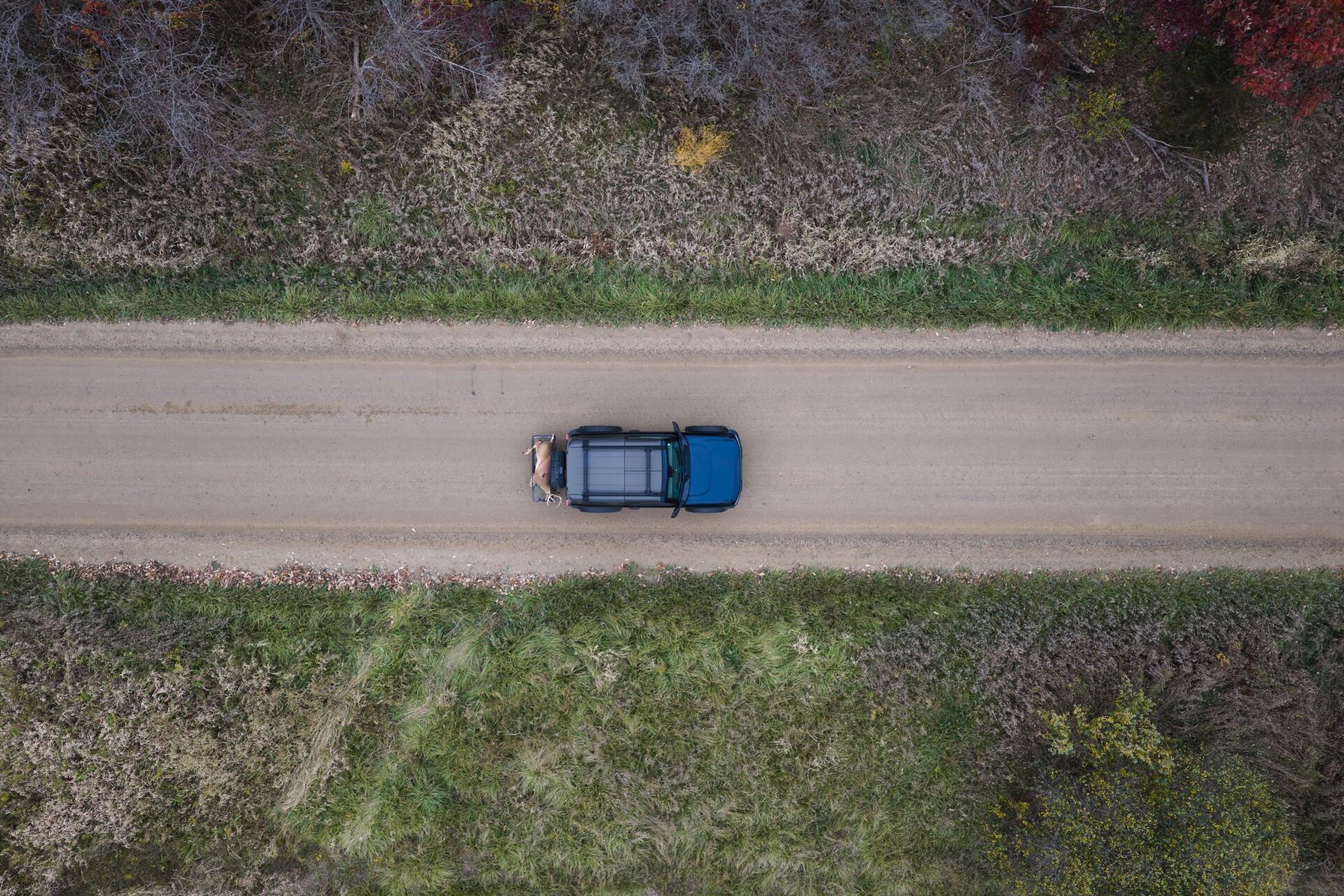
Take Your HuntWise Map on the Drive
The drive between stands is part of every hunt, and now your map comes along for it.
HuntWise on CarPlay gives every user maps, public land, and navigation. Paid members add Siri commands, private land, and property lines. Keep your hands on the wheel, mark the spot, and plan your next sit when you park.
Ready to try it? Explore HuntWise on CarPlay at [LANDING PAGE URL] for the full feature overview, or update HuntWise in the App Store.
Requires iPhone and a compatible vehicle. Drive safely.
HuntWise on CarPlay Frequently Asked Questions (FAQs)
Q: Do I need the latest HuntWise app update for CarPlay to work?
A: Yes. CarPlay is built into the HuntWise app, so older versions won’t show it. Update the app on your iPhone before your next drive.
Q: Do I need to change any iPhone settings?
A: Usually not, because supported apps appear on the CarPlay home screen after you install them. If HuntWise doesn’t show up, open Settings, tap General, tap CarPlay, select your vehicle, and tap Customize. Add HuntWise from that list.
Q: What do I need to use HuntWise on CarPlay?
A: You need an iPhone and a CarPlay-compatible vehicle. A wired or wireless connection works. The feature runs through the HuntWise app on your iPhone.
Q: What can I do from the dash when using HuntWise on CarPlay?
A: CarPlay offers a simple set of tools built for driving. You can view your map, see property lines with a paid plan, mark spots, and navigate to pins. Phone numbers and other details stay on your iPhone, so contact landowners once you’re parked.
Q: Do Siri voice commands work with HuntWise on CarPlay?
A: Yes, Siri voice commands work in HuntWise for paid members connected to CarPlay. You can mark a spot, add a note, remove the last spot, start or stop tracking, check your blinds and stands, and turn property lines on or off. Say “Hey Siri, mark this spot in HuntWise” to try one.
Q: Do Siri commands work on my iPhone without CarPlay?
A: No. The commands work only while your iPhone is connected to CarPlay. If you say one without a connection, Siri will tell you to connect to CarPlay.
Q: Are Siri voice commands free for all HuntWise users?
A: No. Voice commands are a paid feature included with Pro and Elite. Free users still get basic maps, the public land layer, GPS, turn-by-turn navigation, and tap-to-mark spots.
Q: Does HuntWise on CarPlay work without cell service?
A: In general, no. Anything the HuntWise iPhone app needs an internet connection for needs one on CarPlay, too. Plan on having cell service when you use it.


